




Latest Version
Update
October 17, 2026
October 17, 2026
Developer
Google LLC
Google LLC
Categories
Tools
Tools
Platforms
Android
Android
Downloads
0
0
License
Free
Free
Package Name
com.google.android.apps.authenticator2
com.google.android.apps.authenticator2
Report
Report a Problem
Report a Problem
More About Google Authenticator
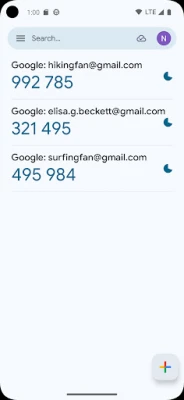
Google Authenticator adds an extra layer of security to your online accounts by adding a second step of verification when you sign in. This means that in addition to your password, you'll also need to enter a code that is generated by the Google Authenticator app on your phone. The verification code can be generated by the Google Authenticator app on your phone, even if you don't have a network or cellular connection.
Google Authenticator creates one-time verification codes to add an extra layer of security when you sign in to websites and apps. It can sync codes with your Google Account, making them easier to restore and access across devices.
Keeping online accounts secure is increasingly important, but verification codes should also be easy to access when you need them. Google Authenticator helps with both: it generates temporary sign-in codes on your Android device and can sync supported codes with your Google Account.
Whether you use two-step verification for email, social media, or work accounts, the app offers a straightforward way to manage authenticator codes in one place. Its QR-code setup and device-transfer options also make getting started or moving to a new phone more convenient.
Google Authenticator is a security app that generates one-time codes used as a second step during sign-in. After you add an account, the app displays a short-lived code that you enter alongside your password when a service asks for an authenticator code. It supports both time-based and counter-based code generation, depending on the service’s setup.
The app is useful for people who want an additional layer of protection for compatible online accounts. To use it with a Google Account, you must first enable 2-Step Verification for that account; other services may have their own instructions for linking an authenticator app.
An APK is the package file format Android uses to install apps. Downloading an APK can allow manual installation, but it is important to use a trustworthy source and verify that the file is genuine and up to date.
Pros
Cons
Users commonly value Google Authenticator for its simple interface, quick code generation, and convenient QR-code setup. The ability to sync supported codes or transfer accounts can also make replacing a phone less stressful.
Some users prefer not to sync security codes with an online account, while others may find account migration or recovery confusing if they have not prepared in advance. As with any authenticator, it is wise to keep each service’s recovery options available and confirm that codes are accessible after changing devices.
Google Authenticator is a practical choice for anyone who wants a familiar, uncluttered way to manage two-step verification codes. QR-code enrollment keeps setup straightforward, while support for multiple accounts and device transfer makes it useful for everyday personal or work logins.
Its main advantage is convenience, especially for users who want their supported codes synced with a Google Account. Before relying on any authenticator, however, set up recovery methods for your online accounts and make sure you understand how to restore or transfer your codes. For users who want a simple code generator from Google, it is well worth considering.
For the safest installation, download Google Authenticator from Google Play or another source you can independently trust. If you install an APK manually, Android may ask you to allow installation from that source in settings—sometimes described as enabling “Install from Unknown Sources.” Turn this permission on only for the installation you intend to complete, then turn it off again if it is no longer needed.
Unofficial or altered APKs can contain malware, compromise account data, or behave differently from the genuine app. Check the publisher and package carefully, keep Android and the app updated, and avoid sharing authenticator codes with anyone. If you use Google Account sync, protect that account with a strong password and suitable recovery options.
Q1: Is Google Authenticator free to use?
A1: Google Authenticator is generally available as a free app. Check the official store listing for current availability in your region.
Q2: Do I need an internet connection to generate codes?
A2: Authenticator codes are generated on your device, so an internet connection is generally not needed just to display a code. Internet access may be needed for account sync, setup, or the service you are signing in to.
Q3: Can I use Google Authenticator for accounts other than Google?
A3: Yes. It can generate codes for other services that support authenticator apps, provided you follow those services’ setup instructions.
Q4: Can I move my codes to a new phone?
A4: You can use the app’s QR-code transfer feature, or sync supported codes with your Google Account. Confirm that your accounts have transferred successfully before wiping or replacing your old device.
Q5: Is it safe to download the Google Authenticator APK?
A5: It is safest to install the app from Google Play. If you choose an APK, use a reputable source and ensure it is the authentic, unmodified app; unofficial files may expose your device or data to security risks.
Google Authenticator APK
📱 Google Authenticator APK Summary
Google Authenticator creates one-time verification codes to add an extra layer of security when you sign in to websites and apps. It can sync codes with your Google Account, making them easier to restore and access across devices.
- App Name: Google Authenticator
- Current Version: Version varies by device and rollout; check Google Play for the latest release
- Last Updated: The current release date may vary by region and Play Store listing
- Category: Tools
- Developer: Google LLC
- Google Play Rating: Rating and review count change over time; see the Google Play listing for current figures
💡 Introduction
Keeping online accounts secure is increasingly important, but verification codes should also be easy to access when you need them. Google Authenticator helps with both: it generates temporary sign-in codes on your Android device and can sync supported codes with your Google Account.
Whether you use two-step verification for email, social media, or work accounts, the app offers a straightforward way to manage authenticator codes in one place. Its QR-code setup and device-transfer options also make getting started or moving to a new phone more convenient.
❓ What Is Google Authenticator APK?
Google Authenticator is a security app that generates one-time codes used as a second step during sign-in. After you add an account, the app displays a short-lived code that you enter alongside your password when a service asks for an authenticator code. It supports both time-based and counter-based code generation, depending on the service’s setup.
The app is useful for people who want an additional layer of protection for compatible online accounts. To use it with a Google Account, you must first enable 2-Step Verification for that account; other services may have their own instructions for linking an authenticator app.
An APK is the package file format Android uses to install apps. Downloading an APK can allow manual installation, but it is important to use a trustworthy source and verify that the file is genuine and up to date.
🧑💻 How to Use
- Install the app: Get Google Authenticator from Google Play when available, or use a reputable APK source if you need to install it manually.
- Enable two-step verification: Open the security settings for the online account you want to protect and choose an authenticator app as a verification method.
- Add an account: In Google Authenticator, tap the add button and scan the QR code provided by the service. Camera access is needed for this option.
- Enter a setup key if needed: If scanning is not available, use the service’s manual setup key and select the appropriate code type.
- Use a sign-in code: When prompted during login, open Authenticator and enter the code shown for that account before it expires.
- Protect access to your codes: If you choose account sync, sign in to your Google Account in the app. You can also use the transfer option to move accounts between devices with a QR code.
⚙️ Features
- Google Account sync: Supported authenticator codes can sync with your Google Account, helping you regain access if you change or lose your phone.
- QR-code setup: Scan a service’s setup QR code to add an account quickly and reduce the chance of entering its details incorrectly.
- Multiple account support: Keep codes for different services together in one app rather than switching between separate authenticator apps.
- Time-based codes: Generate codes that refresh automatically at regular intervals, as used by many online services.
- Counter-based codes: Support services that issue codes based on a counter rather than a timer.
- Device-to-device transfer: Move authenticator accounts to another device using a QR-code transfer process.
- Camera permission for scanning: Camera access is used to scan QR codes when adding accounts; it is not required for manually entering setup details.
✅ Pros and ❌ Cons
Pros
- Simple way to generate verification codes for compatible services.
- Supports multiple accounts in a single app.
- QR-code setup makes adding accounts quick and convenient.
- Account syncing and QR-based transfer provide options for changing devices.
- Supports both time-based and counter-based codes.
Cons
- Syncing codes requires signing in to a Google Account, which may not suit users who prefer device-only storage.
- Account setup depends on each service supporting authenticator codes.
- Moving or restoring codes requires careful attention to the app’s sync or transfer settings.
- Losing access to both the phone and recovery methods for an account can make sign-in difficult.
- App version, availability, and store ratings can vary by device and region.
📋 App Details
- App Name: Google Authenticator
- Current Version: Varies by release; check Google Play or the app’s official listing for the latest version
- Last Updated: Varies by current release and region
- File Size: Varies by version and Android device
- Requires Android: Minimum requirement can change; check the current Google Play listing for your device
- Developer: Google LLC
- Content Rating: Everyone
- Category: Tools
- Permissions: Camera access may be requested to add accounts by scanning QR codes
💬 User Reviews
Users commonly value Google Authenticator for its simple interface, quick code generation, and convenient QR-code setup. The ability to sync supported codes or transfer accounts can also make replacing a phone less stressful.
Some users prefer not to sync security codes with an online account, while others may find account migration or recovery confusing if they have not prepared in advance. As with any authenticator, it is wise to keep each service’s recovery options available and confirm that codes are accessible after changing devices.
🔍 5 Best Alternative Apps
- Microsoft Authenticator: Generates verification codes and supports sign-in features for Microsoft accounts and compatible services. It may suit users already invested in Microsoft’s ecosystem.
- 2FAS Authenticator: A popular authenticator option with code management and backup or transfer features, depending on the version and setup.
- Authy: Offers authenticator-code management with multi-device features. Review its current support and backup options before relying on it for important accounts.
- Aegis Authenticator: An Android-focused option known for local vault management and user-controlled backups. It can appeal to users who want more control over how their codes are stored.
- Proton Authenticator: A dedicated two-factor authentication app from Proton, designed to help manage verification codes across compatible services.
🧠 My Opinion
Google Authenticator is a practical choice for anyone who wants a familiar, uncluttered way to manage two-step verification codes. QR-code enrollment keeps setup straightforward, while support for multiple accounts and device transfer makes it useful for everyday personal or work logins.
Its main advantage is convenience, especially for users who want their supported codes synced with a Google Account. Before relying on any authenticator, however, set up recovery methods for your online accounts and make sure you understand how to restore or transfer your codes. For users who want a simple code generator from Google, it is well worth considering.
🛡️ Privacy and Security
For the safest installation, download Google Authenticator from Google Play or another source you can independently trust. If you install an APK manually, Android may ask you to allow installation from that source in settings—sometimes described as enabling “Install from Unknown Sources.” Turn this permission on only for the installation you intend to complete, then turn it off again if it is no longer needed.
Unofficial or altered APKs can contain malware, compromise account data, or behave differently from the genuine app. Check the publisher and package carefully, keep Android and the app updated, and avoid sharing authenticator codes with anyone. If you use Google Account sync, protect that account with a strong password and suitable recovery options.
❓ Frequently Asked Questions (FAQs)
Q1: Is Google Authenticator free to use?
A1: Google Authenticator is generally available as a free app. Check the official store listing for current availability in your region.
Q2: Do I need an internet connection to generate codes?
A2: Authenticator codes are generated on your device, so an internet connection is generally not needed just to display a code. Internet access may be needed for account sync, setup, or the service you are signing in to.
Q3: Can I use Google Authenticator for accounts other than Google?
A3: Yes. It can generate codes for other services that support authenticator apps, provided you follow those services’ setup instructions.
Q4: Can I move my codes to a new phone?
A4: You can use the app’s QR-code transfer feature, or sync supported codes with your Google Account. Confirm that your accounts have transferred successfully before wiping or replacing your old device.
Q5: Is it safe to download the Google Authenticator APK?
A5: It is safest to install the app from Google Play. If you choose an APK, use a reputable source and ensure it is the authentic, unmodified app; unofficial files may expose your device or data to security risks.
Rate the App
Add Comment & Review
User Reviews
Based on 0 reviews
No reviews added yet.
Comments will not be approved to be posted if they are SPAM, abusive, off-topic, use profanity, contain a personal attack, or promote hate of any kind.






More »

Popular Apps

TradingView: Track All MarketsTradingView Inc.

Bus Fever Party!Lumi Games

Claude by AnthropicAnthropic PBC

Block Craft 3D:Building GameWildlife Studios

Malwarebytes - Mobile SecurityMalwarebytes

Block Blast!HungryStudio

Canva: AI Photo & Video EditorCanva

Candy Crush SagaKing

Carrom Pool: Disc GameMiniclip.com

EA SPORTS FC Soccer Mobile 27ELECTRONIC ARTS
More »
Editor's Choice

Kahoot! Play & Create QuizzesKahoot!

United AirlinesUnited Airlines

Tripwoa: Travel Plan & Trailtripwoa

trivago: Compare hotel pricestrivago N.V.

Planner 5D: AI Home DesignPlanner 5D

ibis Paint Xibis inc.

Agoda: Cheap Flights & Hotelsagoda.com

Hopper: Hotels, Flights & CarsHopper Inc.

Brilliant: Learn Math & CodingBrilliant.org

Google ClassroomGoogle LLC