





Latest Version
Version
2.382.0
2.382.0
Update
October 18, 2026
October 18, 2026
Developer
Canva
Canva
Categories
Design
Design
Platforms
Android
Android
Downloads
0
0
License
Free
Free
Package Name
com.canva.editor
com.canva.editor
Report
Report a Problem
Report a Problem
More About Canva: AI Photo & Video Editor
Canva is your free photo editor, logo maker, collage maker, and video editor in one editing app! Design digital art faster with powerful magic AI tools built-in, like the AI image generator that allows you to transform text to image in just a few minutes Make stunning social media posts and reels, presentations or flyers, create logos, CVs, photo collages and video collages from customizable templates.
Canva is an all-in-one design and content creation app for editing photos and videos, building social media graphics, and creating presentations, invitations, resumes, and more. Its templates and AI-powered tools help beginners and experienced creators turn ideas into polished designs from an Android device.
Creating eye-catching content does not have to involve complicated software or professional design skills. Canva brings templates, editing tools, stock media, and AI-assisted features together in one mobile workspace, making it easier to create everything from a quick social post to a presentation or short video.
Its appeal comes from combining a beginner-friendly interface with a broad range of creative options. Whether you are preparing a résumé, making a collage, designing a logo, or editing a clip, Canva offers a convenient place to get started and refine your work.
Canva is a graphic design and content creation app for individuals, students, teachers, small businesses, and social media creators. Users can start with a ready-made template or a blank canvas, then add images, text, graphics, animation, audio, and other elements. The app also includes photo and video editing tools, collaborative design features, and AI-powered options such as text-to-image generation and object removal. Some assets and advanced tools require a Canva Pro subscription, and availability may vary by region or account.
An APK is the Android application package format used to install apps on Android devices. Installing Canva through an APK is a manual alternative to downloading it from Google Play, but users should verify the file’s source and compatibility before installing it.
Pros
Cons
Canva users commonly appreciate its large template selection, accessible design tools, and ability to create several types of content in one app. The mobile workflow is especially useful for quick edits and social media graphics, while collaboration and cloud access can help teams and students work together.
Common concerns include premium features and assets appearing alongside free options, occasional difficulty finding a particular tool among the many menus, and performance differences across devices. Users should also review subscription details carefully and remember that AI-generated edits may not always match their expectations without further adjustments.
Canva is a versatile option for anyone who wants to create attractive designs without learning complex desktop software. Its templates, photo and video tools, collaboration features, and AI-assisted capabilities make it useful for personal projects, schoolwork, small businesses, and social media content.
The main trade-offs are that some features require a subscription, the many options can take time to explore, and the experience depends partly on your device and internet access. If you want a flexible design app with a gentle learning curve, Canva is worth trying—just check which tools and assets are included in your plan before building a project around them.
For the safest installation, download Canva from Google Play or another trusted source. If you install an APK manually, check that the file comes from a reputable provider and has not been altered. Unofficial or modified APKs can expose your device to malware, account theft, or unwanted data collection.
Android may require you to allow installation from that particular source, sometimes described as enabling “Install unknown apps” or “Install from unknown sources.” Only grant this permission when necessary, and consider turning it off again afterward. Review the app’s requested permissions and Canva’s privacy information, and avoid uploading sensitive material unless you understand how it will be handled.
Q1: Is Canva APK free to use?
A1: Canva offers a free plan with a range of templates and tools. Some premium templates, assets, and features require a paid subscription, and subscription options may vary by region.
Q2: Do I need an internet connection to use Canva?
A2: Many features, including account access, cloud content, collaboration, and online asset browsing, need an internet connection. Offline availability may be limited, so save or export important work when you have access.
Q3: Is it safe to download the Canva APK?
A3: It is safest to install Canva through Google Play. If you use an APK, download it only from a trusted source and be cautious: unofficial or modified files may contain malware or compromise your privacy.
Q4: Does Canva include AI design tools?
A4: Canva provides AI-assisted tools such as text-to-image generation and image editing features in supported locations and plans. Availability and usage limits can change, so check the app for current details.
Q5: Can I use Canva to create videos and social media posts?
A5: Yes. Canva includes templates and editing tools for social graphics and videos. You can customize the design, then export or share it using the options available in your account.
Canva APK
📱 Canva APK Summary
Canva is an all-in-one design and content creation app for editing photos and videos, building social media graphics, and creating presentations, invitations, resumes, and more. Its templates and AI-powered tools help beginners and experienced creators turn ideas into polished designs from an Android device.
- App Name: Canva: AI Photo & Video Editor
- Current Version: Version varies by device and Play Store rollout; check Google Play for the latest release.
- Last Updated: The update date varies by release; check the Google Play listing for the current date.
- Category: Art & Design
- Developer: Canva
- Google Play Rating: Ratings and review counts change over time and by region; consult Google Play for the latest figures.
💡 Introduction
Creating eye-catching content does not have to involve complicated software or professional design skills. Canva brings templates, editing tools, stock media, and AI-assisted features together in one mobile workspace, making it easier to create everything from a quick social post to a presentation or short video.
Its appeal comes from combining a beginner-friendly interface with a broad range of creative options. Whether you are preparing a résumé, making a collage, designing a logo, or editing a clip, Canva offers a convenient place to get started and refine your work.
❓ What is Canva APK?
Canva is a graphic design and content creation app for individuals, students, teachers, small businesses, and social media creators. Users can start with a ready-made template or a blank canvas, then add images, text, graphics, animation, audio, and other elements. The app also includes photo and video editing tools, collaborative design features, and AI-powered options such as text-to-image generation and object removal. Some assets and advanced tools require a Canva Pro subscription, and availability may vary by region or account.
An APK is the Android application package format used to install apps on Android devices. Installing Canva through an APK is a manual alternative to downloading it from Google Play, but users should verify the file’s source and compatibility before installing it.
🧑💻 How to Use
- Install and open Canva: Download the app from Google Play or a trusted APK provider, then launch it on your Android device.
- Sign in or create an account: Use an available sign-in option to access your designs and, where supported, sync work across devices.
- Choose a design: Search for a format such as an Instagram post, presentation, invitation, résumé, video, or logo. You can also begin with a blank canvas.
- Customize the layout: Add or edit text, photos, illustrations, shapes, backgrounds, and other design elements. Use the editing controls to adjust placement, color, size, and style.
- Edit photos or video: Select an image or clip to crop, resize, apply effects, adjust its appearance, or add animations and transitions. Some advanced tools may require Canva Pro.
- Preview and collaborate: Review your design, then invite others to work with you where collaboration is available.
- Save or share: Export your finished work in a supported format or share it through available apps and platforms. Check the design’s asset terms before using it commercially.
⚙️ Features
- Template-based design: Start with layouts for social posts, presentations, flyers, invitations, résumés, thumbnails, and other common projects. Templates reduce setup time while leaving room for customization.
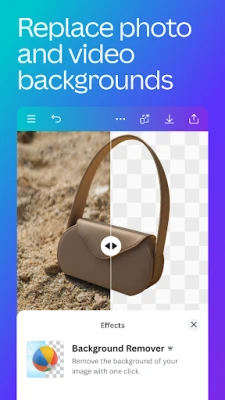
- Photo editing tools: Crop, flip, adjust brightness and color, apply filters, add text, and create collages. Background removal and other advanced editing options may depend on your plan.
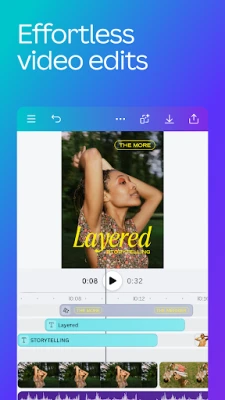
- Video creation and editing: Arrange clips, add audio, use animations and transitions, and create short videos for social media or presentations. Available editing tools can vary by subscription and device.
- AI-assisted design: Canva offers features such as Magic Design, Magic Edit, Magic Eraser, and text-to-image tools in supported regions and plans. These can help generate layouts or make changes to images, though results may need manual refinement.
- Social media content: Create designs sized for platforms such as Instagram, Facebook, YouTube, Snapchat, and LinkedIn. Canva Pro also offers post-scheduling features for supported accounts.
- Stock media and design elements: Browse photos, videos, audio, fonts, and graphics to add to projects. The selection and licensing terms depend on the asset and whether you use a free or paid plan.
- Collaboration and cloud access: Share projects and work with other people in real time where supported. Cloud-based saving can make designs easier to access across devices, subject to account and connection availability.
- Branding tools: Organize brand colors, fonts, and other assets with Canva’s brand features. Some brand management options are part of Canva Pro or other paid plans.
✅ Pros and ❌ Cons
Pros
- Offers a wide range of design formats in one app.
- Templates make it approachable for users without design experience.
- Includes photo, video, presentation, and social content tools.
- AI-assisted features can speed up common creative tasks.
- Supports sharing and collaborative workflows.
Cons
- Some popular assets and advanced tools require a paid plan.
- The number of templates and options can feel overwhelming at first.
- Editing larger projects may be more comfortable on a tablet or computer.
- Cloud features and collaboration generally need an internet connection.
- AI-generated content may need checking and editing before use.
📋 App Details
- App Name: Canva: AI Photo & Video Editor
- Current Version: Varies by device and rollout; see Google Play for the latest version.
- Last Updated: Check Google Play for the current release date.
- File Size: Varies by app release, device, and installation; check the download listing for the exact size.
- Requires Android: Minimum Android requirements can change between releases. Check the current Google Play listing or installer details for compatibility.
- Developer: Canva
- Content Rating: Check the Google Play listing in your region for the current rating.
💬 User Reviews
Canva users commonly appreciate its large template selection, accessible design tools, and ability to create several types of content in one app. The mobile workflow is especially useful for quick edits and social media graphics, while collaboration and cloud access can help teams and students work together.
Common concerns include premium features and assets appearing alongside free options, occasional difficulty finding a particular tool among the many menus, and performance differences across devices. Users should also review subscription details carefully and remember that AI-generated edits may not always match their expectations without further adjustments.
🔍 5 Best Alternative Apps
- Adobe Express: A template-driven app for making social graphics, flyers, and short videos. It is a strong alternative for users who want quick creative tools with Adobe integrations.
- Picsart: A creative editing app focused on photo effects, collages, drawing, and AI-assisted image tools. It suits users who want to experiment with visual edits and stylized imagery.
- Adobe Lightroom: A photo-editing app with controls for color, light, and image detail. It is a good choice for users whose main priority is refining photographs rather than building layouts.
- CapCut: A video editor with tools for trimming clips, adding effects, captions, and music. It is worth considering if short-form video editing is your main creative task.
- VistaCreate: A design app offering templates and tools for social media posts, presentations, and marketing materials. It provides a familiar template-based workflow for everyday graphics.
🧠 My Opinion
Canva is a versatile option for anyone who wants to create attractive designs without learning complex desktop software. Its templates, photo and video tools, collaboration features, and AI-assisted capabilities make it useful for personal projects, schoolwork, small businesses, and social media content.
The main trade-offs are that some features require a subscription, the many options can take time to explore, and the experience depends partly on your device and internet access. If you want a flexible design app with a gentle learning curve, Canva is worth trying—just check which tools and assets are included in your plan before building a project around them.
🛡️ Privacy and Security
For the safest installation, download Canva from Google Play or another trusted source. If you install an APK manually, check that the file comes from a reputable provider and has not been altered. Unofficial or modified APKs can expose your device to malware, account theft, or unwanted data collection.
Android may require you to allow installation from that particular source, sometimes described as enabling “Install unknown apps” or “Install from unknown sources.” Only grant this permission when necessary, and consider turning it off again afterward. Review the app’s requested permissions and Canva’s privacy information, and avoid uploading sensitive material unless you understand how it will be handled.
❓ Frequently Asked Questions (FAQs)
Q1: Is Canva APK free to use?
A1: Canva offers a free plan with a range of templates and tools. Some premium templates, assets, and features require a paid subscription, and subscription options may vary by region.
Q2: Do I need an internet connection to use Canva?
A2: Many features, including account access, cloud content, collaboration, and online asset browsing, need an internet connection. Offline availability may be limited, so save or export important work when you have access.
Q3: Is it safe to download the Canva APK?
A3: It is safest to install Canva through Google Play. If you use an APK, download it only from a trusted source and be cautious: unofficial or modified files may contain malware or compromise your privacy.
Q4: Does Canva include AI design tools?
A4: Canva provides AI-assisted tools such as text-to-image generation and image editing features in supported locations and plans. Availability and usage limits can change, so check the app for current details.
Q5: Can I use Canva to create videos and social media posts?
A5: Yes. Canva includes templates and editing tools for social graphics and videos. You can customize the design, then export or share it using the options available in your account.
Rate the App
Add Comment & Review
User Reviews
Based on 0 reviews
No reviews added yet.
Comments will not be approved to be posted if they are SPAM, abusive, off-topic, use profanity, contain a personal attack, or promote hate of any kind.







More »

Popular Apps

TradingView: Track All MarketsTradingView Inc.

Bus Fever Party!Lumi Games

Claude by AnthropicAnthropic PBC

Block Craft 3D:Building GameWildlife Studios

Malwarebytes - Mobile SecurityMalwarebytes

Block Blast!HungryStudio
Canva: AI Photo & Video EditorCanva

Candy Crush SagaKing

Carrom Pool: Disc GameMiniclip.com

EA SPORTS FC Soccer Mobile 27ELECTRONIC ARTS
More »
Editor's Choice

Kahoot! Play & Create QuizzesKahoot!

United AirlinesUnited Airlines

Tripwoa: Travel Plan & Trailtripwoa
trivago: Compare hotel pricestrivago N.V.

Planner 5D: AI Home DesignPlanner 5D

ibis Paint Xibis inc.
Agoda: Cheap Flights & Hotelsagoda.com

Hopper: Hotels, Flights & CarsHopper Inc.

Brilliant: Learn Math & CodingBrilliant.org

Google ClassroomGoogle LLC