



Latest Version
Version
12.13.4
12.13.4
Update
October 17, 2026
October 17, 2026
Developer
Fing Limited
Fing Limited
Categories
Tools
Tools
Platforms
Android
Android
Downloads
0
0
License
Free
Free
Package Name
com.overlook.android.fing
com.overlook.android.fing
Report
Report a Problem
Report a Problem
More About Fing - Network Tools
Fing has helped 40 million user worldwide to understand:
Fing is a network-scanning and internet troubleshooting app that helps you see which devices are connected to a network and check connection performance. It combines practical tools such as device discovery, speed tests, and network diagnostics, with optional advanced features available through Fingbox.
Wondering who is using your Wi-Fi, why your connection has slowed down, or whether your devices are visible on the network? Fing gives you a straightforward way to scan a network, identify connected devices, and run useful internet checks from your phone.
Its mix of everyday diagnostics and more advanced network tools makes Fing useful for home users as well as people who want a clearer picture of their local network. Some additional home-protection and monitoring features require Fingbox or a related paid service.
Fing is a network utility app for discovering devices connected to Wi-Fi or a local network and checking connectivity. A scan can show details such as a device’s IP and MAC addresses, name, manufacturer, and device type when that information is available. The app also includes internet speed tests and tools such as ping, traceroute, port scanning, and DNS lookup.
It is designed for people who want to troubleshoot a home connection, recognize devices on a network, or investigate basic performance and security questions. Fing can help reveal what is connected, but a scan alone cannot prove that a network is fully secure or detect every hidden camera.
An APK is the package file format Android uses to distribute and install apps. Installing an APK manually can be useful when an app is not installed through an app store, but users should verify the file and its source before installing it.
Pros
Cons
User feedback commonly values Fing for making it easy to scan a network, recognize connected devices, and run a quick connection test. People who are comfortable with technical details may also appreciate having diagnostic tools beyond a standard speed test.
Some users may find that device identification is not always exact, or that speed-test results differ from their internet provider’s advertised rate. Advanced features can also involve extra requirements or costs. As with any app, the experience can vary depending on the phone, Android version, router, and network setup. Check recent store reviews for current feedback about your device.
Fing is a useful choice for anyone who wants a clearer view of the devices and performance on a home network. Its main strength is the combination of an approachable scanner, speed tests, and deeper diagnostic tools in one place.
It is best treated as a troubleshooting aid rather than a complete security solution: device identification can be imperfect, and a scan cannot guarantee that a network is protected. If you regularly wonder what is connected to your Wi-Fi or need a quick way to investigate a slow connection, Fing is worth considering. Users who need advanced home monitoring should review the requirements and cost of its optional services first.
Download Fing from Google Play or another trusted source, and review its permissions and privacy information before use. Network-scanning tools need access to relevant network details to work, so only grant permissions that make sense for the features you use.
If you install an APK manually, use a reputable source and verify that the file is genuine. Android may ask you to allow installation from that source in its settings; enable this only when necessary, and turn it off again afterward if you do not need it. Unofficial or modified APKs can contain malware, request excessive permissions, or expose personal information. Avoid versions that claim to unlock paid features without authorization.
Q1: Is Fing free to use?
A1: Fing provides free network utilities, including scanning and diagnostic tools. Some advanced features or services may require Fingbox hardware or a paid plan.
Q2: Can Fing tell me who is using my Wi-Fi?
A2: Fing can scan a network and show devices it detects. It may help you recognize unfamiliar devices, but names and manufacturer details are not always definitive.
Q3: Does Fing work without an internet connection?
A3: Local network scanning may work while your phone is connected to the Wi-Fi network, but internet speed tests and some online features require an internet connection.
Q4: Can Fing prove that my network has been hacked or find every hidden camera?
A4: No. Fing can reveal some connected devices and provide diagnostic information, but it cannot confirm that a network is completely secure or guarantee detection of hidden cameras.
Q5: Is it safe to download the Fing APK?
A5: Safety depends on the file and where it comes from. Prefer Google Play or a verified source, avoid modified APKs, and review the permissions requested before installing.
Fing APK
📱 Fing APK Summary
Fing is a network-scanning and internet troubleshooting app that helps you see which devices are connected to a network and check connection performance. It combines practical tools such as device discovery, speed tests, and network diagnostics, with optional advanced features available through Fingbox.
- App Name: Fing – Network Tools
- Current Version: Version varies by release; check the official Google Play listing for the latest version.
- Last Updated: The date changes with each release; check the official listing for the current update date.
- Category: Tools
- Developer: Fing Limited
- Google Play Rating: Ratings and review counts change over time; consult Google Play for the current figures.
💡 Introduction
Wondering who is using your Wi-Fi, why your connection has slowed down, or whether your devices are visible on the network? Fing gives you a straightforward way to scan a network, identify connected devices, and run useful internet checks from your phone.
Its mix of everyday diagnostics and more advanced network tools makes Fing useful for home users as well as people who want a clearer picture of their local network. Some additional home-protection and monitoring features require Fingbox or a related paid service.
❓ What Is Fing APK?
Fing is a network utility app for discovering devices connected to Wi-Fi or a local network and checking connectivity. A scan can show details such as a device’s IP and MAC addresses, name, manufacturer, and device type when that information is available. The app also includes internet speed tests and tools such as ping, traceroute, port scanning, and DNS lookup.
It is designed for people who want to troubleshoot a home connection, recognize devices on a network, or investigate basic performance and security questions. Fing can help reveal what is connected, but a scan alone cannot prove that a network is fully secure or detect every hidden camera.
An APK is the package file format Android uses to distribute and install apps. Installing an APK manually can be useful when an app is not installed through an app store, but users should verify the file and its source before installing it.
🧑💻 How to Use Fing
- Install and open the app: Get Fing from a trusted app store or a verified source, then launch it on your Android device.
- Allow relevant permissions: Grant the permissions needed for network discovery and nearby network functions. Available permissions can vary by Android version.
- Connect to a network: Join the Wi-Fi network you want to check. For a useful device scan, your phone generally needs to be connected to that network.
- Start a scan: Use the network scan option to look for devices. Fing will display the devices it can identify on the current network.
- Review device details: Tap a listed device to see available information, such as its network address, manufacturer, or device type. Identification may not be perfect, so check unfamiliar devices against your own equipment.
- Test your connection: Run a speed test to review download speed, upload speed, and latency. Results can vary with signal strength, network traffic, and the test server.
- Use diagnostic tools if needed: Try ping, traceroute, DNS lookup, or port scanning to investigate specific connectivity questions.
- Explore optional features: For certain home monitoring, parental-control, and protection features, check the current Fingbox or subscription requirements in the app.
⚙️ Features
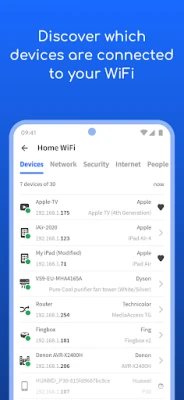
- Wi-Fi and LAN device scanner: Scans a connected network and lists devices it can discover, helping you keep track of computers, phones, smart TVs, and other equipment.
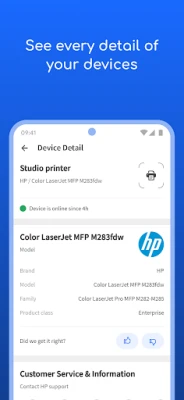
- Device identification: Shows available details such as IP address, MAC address, device name, model, vendor, or manufacturer to make network lists easier to understand.
- Internet speed tests: Measures download speed, upload speed, and latency, giving you a quick way to check how a connection is performing at that moment.
- Network diagnostics: Includes tools such as ping, traceroute, DNS lookup, and port scanning for investigating common connection and network issues.
- Advanced device information: Can inspect available NetBIOS, UPnP, SNMP, and Bonjour details to provide more context about compatible devices on a network.
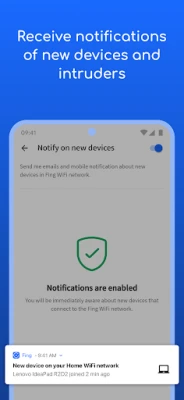
- Network alerts: Notifications and alerts can help users notice changes or newly detected devices, depending on the app’s configuration and available services.
- Optional home-network features: Fingbox-related services can offer tools such as device presence, internet access scheduling, bandwidth insights, and vulnerability checks. Availability may depend on hardware, plan, and region.
- Wi-Fi troubleshooting support: Network information and optional Wi-Fi analysis tools can help users investigate coverage and performance concerns around the home.
✅ Pros and ❌ Cons
Pros
- Combines device discovery, speed testing, and several network diagnostics in one app.
- Presents useful technical information in a format that many home users can follow.
- Can help identify unfamiliar devices and provide a starting point for troubleshooting slow connections.
- Offers advanced diagnostic details for users who want more than a basic speed test.
- Core scanning and utility features are available without necessarily requiring Fingbox.
Cons
- Device names and manufacturer details may be incomplete or inaccurate, so results can require manual checking.
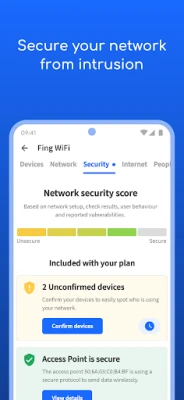
- A network scan cannot guarantee that a Wi-Fi network is secure or identify every possible threat.
- Some advanced home monitoring and protection functions may require Fingbox hardware or a paid plan.
- Speed-test results are snapshots and can change with network congestion, router placement, and other conditions.
- Network scanning may require permissions that users should review and understand before granting.
📋 App Details
- App Name: Fing – Network Tools
- Current Version: Check the official app listing for the latest release number.
- Last Updated: Check the official app listing; the update date may change as new releases roll out.
- File Size: Varies by version and device; check the download listing before installing.
- Requires Android: Minimum Android support may change between releases. Confirm the requirement shown for the version you intend to install.
- Developer: Fing Limited
- Category: Tools
- Content Rating: Check the current store listing for the applicable rating in your region.
- Price: The app offers free tools; optional features or services may require payment.
💬 User Reviews
User feedback commonly values Fing for making it easy to scan a network, recognize connected devices, and run a quick connection test. People who are comfortable with technical details may also appreciate having diagnostic tools beyond a standard speed test.
Some users may find that device identification is not always exact, or that speed-test results differ from their internet provider’s advertised rate. Advanced features can also involve extra requirements or costs. As with any app, the experience can vary depending on the phone, Android version, router, and network setup. Check recent store reviews for current feedback about your device.
🔍 5 Best Alternative Apps
- WiFiman: A network utility from Ubiquiti that offers device discovery and Wi-Fi analysis tools. It is a useful option for users who want to inspect local network connections.
- Network Analyzer: Provides network scanning and diagnostic utilities, including tools for checking local devices and connection details.
- Network Scanner by First Row: A straightforward scanner for listing devices connected to a local network, with information that can help investigate unfamiliar connections.
- Speedtest by Ookla: Focuses on measuring internet performance, including download speed, upload speed, and latency. It is a good choice if speed testing is your main need.
- NetX Network Tools: Offers network discovery and diagnostic features for users who want to inspect connected devices and troubleshoot a local connection.
🧠 My Opinion
Fing is a useful choice for anyone who wants a clearer view of the devices and performance on a home network. Its main strength is the combination of an approachable scanner, speed tests, and deeper diagnostic tools in one place.
It is best treated as a troubleshooting aid rather than a complete security solution: device identification can be imperfect, and a scan cannot guarantee that a network is protected. If you regularly wonder what is connected to your Wi-Fi or need a quick way to investigate a slow connection, Fing is worth considering. Users who need advanced home monitoring should review the requirements and cost of its optional services first.
🛡️ Privacy and Security
Download Fing from Google Play or another trusted source, and review its permissions and privacy information before use. Network-scanning tools need access to relevant network details to work, so only grant permissions that make sense for the features you use.
If you install an APK manually, use a reputable source and verify that the file is genuine. Android may ask you to allow installation from that source in its settings; enable this only when necessary, and turn it off again afterward if you do not need it. Unofficial or modified APKs can contain malware, request excessive permissions, or expose personal information. Avoid versions that claim to unlock paid features without authorization.
❓ Frequently Asked Questions (FAQs)
Q1: Is Fing free to use?
A1: Fing provides free network utilities, including scanning and diagnostic tools. Some advanced features or services may require Fingbox hardware or a paid plan.
Q2: Can Fing tell me who is using my Wi-Fi?
A2: Fing can scan a network and show devices it detects. It may help you recognize unfamiliar devices, but names and manufacturer details are not always definitive.
Q3: Does Fing work without an internet connection?
A3: Local network scanning may work while your phone is connected to the Wi-Fi network, but internet speed tests and some online features require an internet connection.
Q4: Can Fing prove that my network has been hacked or find every hidden camera?
A4: No. Fing can reveal some connected devices and provide diagnostic information, but it cannot confirm that a network is completely secure or guarantee detection of hidden cameras.
Q5: Is it safe to download the Fing APK?
A5: Safety depends on the file and where it comes from. Prefer Google Play or a verified source, avoid modified APKs, and review the permissions requested before installing.
Rate the App
Add Comment & Review
User Reviews
Based on 0 reviews
No reviews added yet.
Comments will not be approved to be posted if they are SPAM, abusive, off-topic, use profanity, contain a personal attack, or promote hate of any kind.







More »

Popular Apps

TradingView: Track All MarketsTradingView Inc.

Bus Fever Party!Lumi Games

Claude by AnthropicAnthropic PBC

Block Craft 3D:Building GameWildlife Studios

Malwarebytes - Mobile SecurityMalwarebytes

Block Blast!HungryStudio

Canva: AI Photo & Video EditorCanva

Candy Crush SagaKing

Carrom Pool: Disc GameMiniclip.com

EA SPORTS FC Soccer Mobile 27ELECTRONIC ARTS
More »
Editor's Choice

Kahoot! Play & Create QuizzesKahoot!

United AirlinesUnited Airlines

Tripwoa: Travel Plan & Trailtripwoa

trivago: Compare hotel pricestrivago N.V.

Planner 5D: AI Home DesignPlanner 5D

ibis Paint Xibis inc.

Agoda: Cheap Flights & Hotelsagoda.com

Hopper: Hotels, Flights & CarsHopper Inc.

Brilliant: Learn Math & CodingBrilliant.org

Google ClassroomGoogle LLC