




Latest Version
Version
5.2.1
5.2.1
Update
October 18, 2026
October 18, 2026
Developer
Moodle Pty Ltd.
Moodle Pty Ltd.
Categories
Education
Education
Platforms
Android
Android
Downloads
0
0
License
Free
Free
Package Name
com.moodle.moodlemobile
com.moodle.moodlemobile
Report
Report a Problem
Report a Problem
More About Moodle
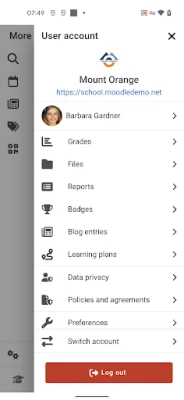
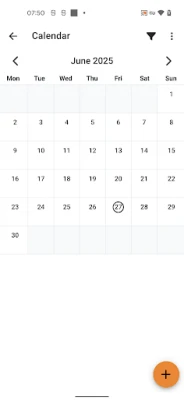
Access your Moodle Learning Management System courses anytime, anywhere, on the go and even offline.
Moodle is the official mobile app for accessing Moodle learning platforms, helping students and educators keep up with courses from an Android device. Browse course materials, submit assignments, check grades, and receive notifications; the features available depend on how each institution has configured its Moodle site.
Keeping track of online classes can be difficult when lessons, deadlines, announcements, and grades are spread across different pages. Moodle brings many of these learning tasks together in one mobile app, giving learners a convenient way to stay connected with their courses wherever they are.
It is designed to work with a school, university, workplace, or other organization’s Moodle learning platform. Once connected, users can check course updates and complete supported activities without relying solely on a desktop browser.
Moodle is a learning management system (LMS) companion app. It connects to a Moodle site provided by an educational institution or organization, allowing students and teachers to access course content, communicate, and manage learning activities on Android. It is not a standalone course library: you generally need the address of a Moodle site and an account supplied by your institution.
An APK is the package format Android uses to install apps. Downloading a Moodle APK can allow manual installation, but the safest and simplest option for most users is installing the official app through Google Play and keeping it updated there.
Pros
Cons
User feedback commonly reflects how well the app connects learners to their institution’s Moodle site. Many appreciate being able to check course content, deadlines, notifications, and grades from a phone, as well as downloading selected materials for offline study.
Some users report login difficulties, inconsistent performance, or features that behave differently from the desktop site. These issues can be related to the app, the device, network conditions, or the institution’s Moodle configuration. If something does not work, checking for an update or contacting the institution’s support team may help.
Moodle is a practical companion for anyone whose school, university, or organization uses Moodle. Its main strength is convenience: learners can check course information, follow updates, and handle supported activities without needing to sit at a computer. It is not a replacement for every feature of the desktop site, and the experience depends partly on how the institution has configured its platform.
If you already have a Moodle account, the app is worth trying as a simple way to stay connected to your courses. For the best results, install the official release, confirm your site address with your institution, and keep the app updated.
Download Moodle from Google Play or another trusted distribution channel, and make sure the developer and app identity match the official Moodle release. Be cautious with APK files from unfamiliar websites: modified or counterfeit packages can expose your device or personal information to malware and other security risks.
Manual APK installation may require allowing installs from an unknown source in Android settings. Enable this permission only for the source you trust, and turn it off again when you are finished if you do not need it. Your Moodle login may provide access to personal learning records, so use a strong password, avoid sharing credentials, and sign out on devices you do not control.
Q1: Is Moodle APK free to use?
A1: The official Moodle mobile app is generally available to download at no charge. You may need an account from a school or organization to access its courses.
Q2: Do I need an internet connection to use Moodle?
A2: An internet connection is usually needed to sign in, synchronize course information, and use online activities. Some supported materials can be downloaded for offline viewing.
Q3: Can I use Moodle without a school or organization account?
A3: The app is designed to connect to a Moodle site, so you normally need the site address and login details provided by the organization that hosts your courses.
Q4: Is it safe to download the Moodle APK?
A4: The official app from a trusted store is the recommended choice. Unofficial APKs may be altered or unsafe, so avoid unknown sources and review app permissions before installing.
Q5: Why can’t I access a course feature in the app?
A5: Not every Moodle activity or site feature is supported in the same way on mobile. Availability can depend on the course configuration; try the Moodle website or contact your institution’s support team.
Moodle APK
📱 Moodle APK Summary
Moodle is the official mobile app for accessing Moodle learning platforms, helping students and educators keep up with courses from an Android device. Browse course materials, submit assignments, check grades, and receive notifications; the features available depend on how each institution has configured its Moodle site.
- App Name: Moodle
- Current Version: Version varies by release and device; check Google Play for the latest listing
- Last Updated: The latest update date varies by region and store listing
- Category: Education
- Developer: Moodle Pty Ltd
- Google Play Rating: Ratings and review counts change over time; check Google Play for the current figures
💡 Introduction
Keeping track of online classes can be difficult when lessons, deadlines, announcements, and grades are spread across different pages. Moodle brings many of these learning tasks together in one mobile app, giving learners a convenient way to stay connected with their courses wherever they are.
It is designed to work with a school, university, workplace, or other organization’s Moodle learning platform. Once connected, users can check course updates and complete supported activities without relying solely on a desktop browser.
❓ What Is Moodle APK?
Moodle is a learning management system (LMS) companion app. It connects to a Moodle site provided by an educational institution or organization, allowing students and teachers to access course content, communicate, and manage learning activities on Android. It is not a standalone course library: you generally need the address of a Moodle site and an account supplied by your institution.
An APK is the package format Android uses to install apps. Downloading a Moodle APK can allow manual installation, but the safest and simplest option for most users is installing the official app through Google Play and keeping it updated there.
🧑💻 How to Use
- Install the app: Get Moodle from Google Play or, if installing manually, use a trusted source and verify that the app is the official Moodle release.
- Enter your Moodle site: Open the app and provide your school or organization’s Moodle website address. If you are unsure of the URL, ask your instructor or IT support team.
- Sign in: Log in using the account details associated with that Moodle site. Some organizations may use a separate sign-in or authentication process.
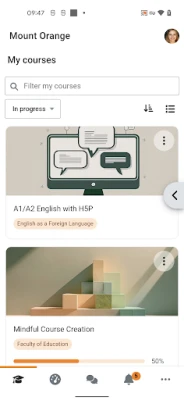
- Open a course: Browse your available courses to find lessons, files, activities, announcements, and other materials made available by your teachers.
- Complete learning tasks: Follow the instructions for supported activities, such as viewing resources, participating in discussions, or submitting assignments.
- Check progress: Look for grades, completion information, and course updates when your site makes them available.
- Manage notifications and downloads: Adjust notification settings and download supported course content for offline access where available. Some actions still require an internet connection.
⚙️ Features
- Course access on mobile: View enrolled courses and their learning materials from an Android phone or tablet, making it easier to study away from a computer.
- Learning resources: Open course pages and supported files, including materials your instructor has added to the Moodle site.
- Assignment and activity support: Work with supported tasks in the app, including submitting certain assignments when the course configuration allows it.
- Notifications and updates: Receive or review course-related alerts, helping you keep track of announcements and upcoming learning tasks.
- Grades and progress: Check grades and completion details where these are enabled by your institution and course settings.
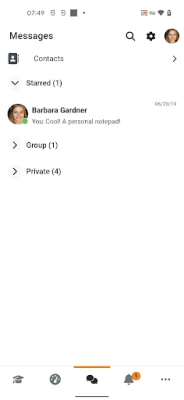
- Messaging and discussions: Participate in supported communication tools, such as course discussions or messages, depending on the Moodle site’s setup.
- Offline access to selected content: Download some resources for later viewing. Availability depends on the type of content and the settings of your Moodle site.
- Multiple-site support: Connect to more than one Moodle site when needed, which can be useful for learners who use different institutional platforms.
✅ Pros and ❌ Cons
Pros
- Provides convenient mobile access to Moodle courses and learning materials.
- Combines useful study tools such as course updates, activities, and grades in one place.
- Supports offline access to some downloaded content.
- Can help learners stay organized with notifications and progress information.
- The app is useful for students and educators already using a Moodle site.
Cons
- Requires access to a Moodle site; it does not provide courses by itself.
- Features and appearance can differ depending on the institution’s Moodle configuration.
- Some activities may work better or be available only in a web browser.
- Offline access is limited to supported content and may not include interactive activities.
- Login or connection issues can depend on the institution’s server and authentication setup.
📋 App Details
- App Name: Moodle
- Current Version: Varies by release; check the app store listing or the installed app for the current version
- Last Updated: Varies; consult Google Play for the latest update date
- File Size: Varies by version and device; check the installation listing for the current download size
- Requires Android: Minimum requirements can change between releases; check Google Play for compatibility with your device
- Developer: Moodle Pty Ltd
- Category: Education
- Content Rating: Check the current Google Play listing for the rating in your region
💬 User Reviews
User feedback commonly reflects how well the app connects learners to their institution’s Moodle site. Many appreciate being able to check course content, deadlines, notifications, and grades from a phone, as well as downloading selected materials for offline study.
Some users report login difficulties, inconsistent performance, or features that behave differently from the desktop site. These issues can be related to the app, the device, network conditions, or the institution’s Moodle configuration. If something does not work, checking for an update or contacting the institution’s support team may help.
🔍 5 Best Alternative Apps
- Canvas Student: A mobile companion for courses hosted on Canvas. It offers access to course materials, assignments, announcements, and grades for students whose institutions use the platform.
- Google Classroom: A classroom management app for schools and educators using Google Workspace for Education. Students can follow classwork, review resources, and submit assignments.
- Microsoft Teams: A collaboration and learning option used by many schools and organizations. It brings chat, meetings, shared files, and class tools together.
- Blackboard Learn: A mobile learning app for institutions that use Blackboard. Depending on the school’s setup, learners can access course content, tasks, grades, and updates.
- Brightspace Pulse: A companion app for courses delivered through D2L Brightspace. It helps learners follow upcoming deadlines, course updates, and learning activities.
🧠 My Opinion
Moodle is a practical companion for anyone whose school, university, or organization uses Moodle. Its main strength is convenience: learners can check course information, follow updates, and handle supported activities without needing to sit at a computer. It is not a replacement for every feature of the desktop site, and the experience depends partly on how the institution has configured its platform.
If you already have a Moodle account, the app is worth trying as a simple way to stay connected to your courses. For the best results, install the official release, confirm your site address with your institution, and keep the app updated.
🛡️ Privacy and Security
Download Moodle from Google Play or another trusted distribution channel, and make sure the developer and app identity match the official Moodle release. Be cautious with APK files from unfamiliar websites: modified or counterfeit packages can expose your device or personal information to malware and other security risks.
Manual APK installation may require allowing installs from an unknown source in Android settings. Enable this permission only for the source you trust, and turn it off again when you are finished if you do not need it. Your Moodle login may provide access to personal learning records, so use a strong password, avoid sharing credentials, and sign out on devices you do not control.
❓ Frequently Asked Questions (FAQs)
Q1: Is Moodle APK free to use?
A1: The official Moodle mobile app is generally available to download at no charge. You may need an account from a school or organization to access its courses.
Q2: Do I need an internet connection to use Moodle?
A2: An internet connection is usually needed to sign in, synchronize course information, and use online activities. Some supported materials can be downloaded for offline viewing.
Q3: Can I use Moodle without a school or organization account?
A3: The app is designed to connect to a Moodle site, so you normally need the site address and login details provided by the organization that hosts your courses.
Q4: Is it safe to download the Moodle APK?
A4: The official app from a trusted store is the recommended choice. Unofficial APKs may be altered or unsafe, so avoid unknown sources and review app permissions before installing.
Q5: Why can’t I access a course feature in the app?
A5: Not every Moodle activity or site feature is supported in the same way on mobile. Availability can depend on the course configuration; try the Moodle website or contact your institution’s support team.
Rate the App
Add Comment & Review
User Reviews
Based on 0 reviews
No reviews added yet.
Comments will not be approved to be posted if they are SPAM, abusive, off-topic, use profanity, contain a personal attack, or promote hate of any kind.





More »

Popular Apps

TradingView: Track All MarketsTradingView Inc.

Bus Fever Party!Lumi Games

Claude by AnthropicAnthropic PBC

Block Craft 3D:Building GameWildlife Studios

Malwarebytes - Mobile SecurityMalwarebytes

Block Blast!HungryStudio

Canva: AI Photo & Video EditorCanva

Candy Crush SagaKing

Carrom Pool: Disc GameMiniclip.com

EA SPORTS FC Soccer Mobile 27ELECTRONIC ARTS
More »
Editor's Choice

Kahoot! Play & Create QuizzesKahoot!

United AirlinesUnited Airlines

Tripwoa: Travel Plan & Trailtripwoa

trivago: Compare hotel pricestrivago N.V.

Planner 5D: AI Home DesignPlanner 5D

ibis Paint Xibis inc.
Agoda: Cheap Flights & Hotelsagoda.com

Hopper: Hotels, Flights & CarsHopper Inc.

Brilliant: Learn Math & CodingBrilliant.org

Google ClassroomGoogle LLC