




Latest Version
Version
155.0.4283.48
155.0.4283.48
Update
October 17, 2026
October 17, 2026
Developer
Microsoft Corporation
Microsoft Corporation
Categories
Internet
Internet
Platforms
Android
Android
Downloads
0
0
License
Free
Free
Package Name
com.microsoft.emmx
com.microsoft.emmx
Report
Report a Problem
Report a Problem
More About Microsoft Edge
Browse with Microsoft Edge, your everyday web browser with built-in Copilot. From finding information to making sense of it, Copilot works alongside you to streamline everyday browsing, so you can turn ideas into action and get it done faster.
Microsoft Edge brings web browsing and Copilot AI together, helping you search, understand pages, and create content without constantly switching apps or tabs. It also includes tools for privacy, security, accessibility, and organizing your browsing.
Microsoft Edge: AI Browser is a mobile browser for people who want more from the web than a place to open links. With Copilot built in, it can help summarize articles, answer questions about the page you are viewing, and turn ideas into written drafts or images.
Its appeal comes from combining everyday browsing with practical AI assistance and familiar browser tools. Whether you are researching, reading, shopping, or organizing several open pages, Edge aims to help you get things done while keeping your workflow in one app.
Microsoft Edge: AI Browser is Microsoft’s Android web browser with Copilot integrated into the browsing experience. Depending on the available features and your settings, Copilot can respond to questions, summarize webpages, PDFs, and videos, and use context from open tabs to help compare information or develop ideas. The browser also includes features such as Read Aloud, page translation, tab organization, tracking prevention, InPrivate browsing, and security alerts.
An APK is the package file format Android uses to distribute and install apps. Installing an APK manually can be useful when an app is not available through your usual app store, but it requires extra care: use a trustworthy source and verify that the file is genuine and compatible with your device.
Pros
Cons
Feedback on Microsoft Edge commonly reflects its mix of familiar browser features and Microsoft services. Users often value its smooth browsing tools, syncing options, built-in reading features, and the convenience of having Copilot available alongside webpages. Tab organization and security controls can also be useful for people who browse for work or study.
Some users may find the interface or range of Microsoft services more involved than they need, while others report that performance and feature availability can vary across devices and updates. As with any AI assistant, Copilot’s answers may need verification, especially for important or time-sensitive decisions. Individual experiences differ by device, location, and app version.
Microsoft Edge: AI Browser is a capable option for anyone who wants a full-featured mobile browser with AI assistance built into the experience. Its strongest advantage is convenience: you can browse, ask questions, summarize supported content, listen to pages, and manage tabs in one place.
It is worth trying if you already use Microsoft services or regularly research information online. Keep in mind that AI output is not a substitute for checking reliable sources, and some features may not be available everywhere. For users who want an adaptable browser with useful productivity and safety tools, Edge is a strong all-round choice.
Download Microsoft Edge from Google Play or another trusted source whenever possible. If you install an APK manually, enable the Android setting that permits installation from that particular source only when needed, then turn the permission off afterward. The setting name may differ between Android versions.
Unofficial or modified APK files can contain malware, compromise personal information, or behave differently from the official app. Check the package and source carefully, avoid files that request suspicious permissions, and keep Android and Edge updated. Privacy tools such as InPrivate mode can limit what is saved in your local browsing history, but they do not make you anonymous to websites, networks, or internet service providers.
Q1: Is Microsoft Edge: AI Browser free to use?
A1: Edge is generally available as a free browser. Some services or features may have separate eligibility, account, regional, or usage requirements.
Q2: Do I need an internet connection to use Edge?
A2: An internet connection is needed to load most websites, search the web, and use Copilot. Some basic app functions may remain available offline, but browsing and online services will be limited.
Q3: Is it safe to download the Microsoft Edge APK?
A3: The official app obtained through Google Play or a verified Microsoft distribution channel is the safest choice. If using an APK, download it only from a reputable source and avoid modified or unknown files.
Q4: Can Copilot summarize any webpage or video?
A4: Copilot can summarize supported content, but availability depends on the page, format, app version, region, and permissions. Some content may not be accessible to the feature.
Q5: Does InPrivate mode make me completely anonymous?
A5: No. InPrivate mode is designed to avoid saving browsing activity in your usual local history, but websites, employers, network administrators, and internet providers may still be able to observe activity.
Microsoft Edge: AI Browser APK
📱 Microsoft Edge: AI Browser APK Summary
Microsoft Edge brings web browsing and Copilot AI together, helping you search, understand pages, and create content without constantly switching apps or tabs. It also includes tools for privacy, security, accessibility, and organizing your browsing.
- App Name: Microsoft Edge: AI Browser
- Current Version: Version numbers vary by release and device; check Google Play or the app’s official store listing for the latest version.
- Last Updated: Updates are released regularly; the latest date may vary by region and device.
- Category: Productivity
- Developer: Microsoft Corporation
- Google Play Rating: Ratings and review counts change over time and by region; check Google Play for the current figures.
💡 Introduction
Microsoft Edge: AI Browser is a mobile browser for people who want more from the web than a place to open links. With Copilot built in, it can help summarize articles, answer questions about the page you are viewing, and turn ideas into written drafts or images.
Its appeal comes from combining everyday browsing with practical AI assistance and familiar browser tools. Whether you are researching, reading, shopping, or organizing several open pages, Edge aims to help you get things done while keeping your workflow in one app.
❓ What is Microsoft Edge: AI Browser APK?
Microsoft Edge: AI Browser is Microsoft’s Android web browser with Copilot integrated into the browsing experience. Depending on the available features and your settings, Copilot can respond to questions, summarize webpages, PDFs, and videos, and use context from open tabs to help compare information or develop ideas. The browser also includes features such as Read Aloud, page translation, tab organization, tracking prevention, InPrivate browsing, and security alerts.
An APK is the package file format Android uses to distribute and install apps. Installing an APK manually can be useful when an app is not available through your usual app store, but it requires extra care: use a trustworthy source and verify that the file is genuine and compatible with your device.
🧑💻 How to Use
- Install and open Edge: Get Microsoft Edge from Google Play or another trusted distribution channel, then launch the app.
- Complete setup: Follow the on-screen prompts. You can sign in with a Microsoft account if you want to use account-linked services and settings.
- Start browsing: Enter a web address or search query in the address bar. Edge can direct you to search results or, where available, Copilot assistance.
- Ask Copilot for help: Open Copilot and ask a question about a topic or the content you are viewing. Available context and Vision features may depend on the app version, permissions, and region.
- Summarize or listen: Use the available page tools to request a summary or start Read Aloud for supported content.
- Organize your tabs: Keep related pages together with tab groups, and close or revisit tabs from the tab switcher.
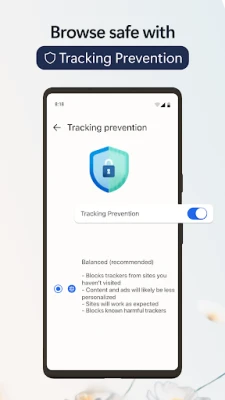
- Adjust privacy and security: Review tracking prevention and other privacy settings. Open an InPrivate tab when you want browsing activity excluded from your normal history.
⚙️ Features
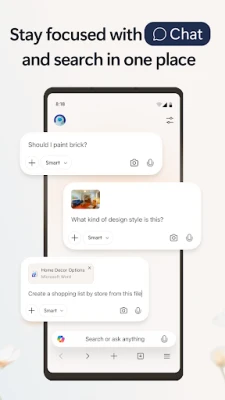
- Copilot built into browsing: Ask questions, explore topics, and get help with tasks from within Edge, reducing the need to jump between a browser and a separate assistant.
- Page and media summaries: Request concise summaries of supported webpages, PDFs, and videos to grasp key points more quickly.
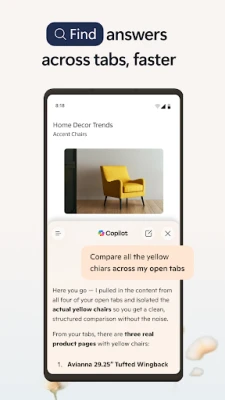
- Context across open tabs: Copilot can help connect or compare information across tabs where the feature is supported, making research and decision-making more convenient.
- Vision assistance: On supported content and devices, Vision can help analyze what is on screen and support brainstorming about the material you are browsing.
- Read Aloud: Listen to supported pages using spoken voices, which is helpful while multitasking or when you prefer audio to reading.
- Tab groups and extensions: Organize related pages and customize browsing with supported extensions, including tools for shopping or reducing distractions.
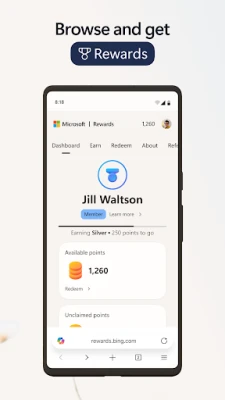
- Translation and rewards: Translate webpages as you browse and, where eligible, earn Microsoft Rewards points through qualifying activity.
- Privacy and security controls: Tracking Prevention, InPrivate mode, password monitoring, AdBlock Plus, and Microsoft Defender SmartScreen can help reduce tracking, unwanted ads, and exposure to risky sites. Features and availability may vary.
✅ Pros and ❌ Cons
Pros
- Combines browsing and Copilot assistance in one app.
- Can summarize supported content and help with research across pages.
- Includes useful tools such as Read Aloud, translation, tab groups, and extensions.
- Offers privacy and security features, including InPrivate mode and SmartScreen protection.
- Suitable for general browsing as well as work, study, and information gathering.
Cons
- Some Copilot features may depend on region, account, permissions, or app version.
- AI responses can be incomplete or inaccurate, so important information should be checked.
- Using AI features and loading webpages generally requires an internet connection.
- Some users may prefer a simpler browser with fewer integrated services.
- Extension support and feature availability may differ from the desktop version.
📋 App Details
- App Name: Microsoft Edge: AI Browser
- Current Version: Varies by release; consult the official store listing for the version currently available to your device.
- Last Updated: Changes with each release; check the official listing for the latest update date.
- File Size: Varies by version, device, and installation package. Check the download listing for the exact size.
- Requires Android: Minimum requirements can change with updates; check Google Play or the installer details for device compatibility.
- Developer: Microsoft Corporation
- Content Rating: Check the current rating shown for your region in Google Play.
💬 User Reviews
Feedback on Microsoft Edge commonly reflects its mix of familiar browser features and Microsoft services. Users often value its smooth browsing tools, syncing options, built-in reading features, and the convenience of having Copilot available alongside webpages. Tab organization and security controls can also be useful for people who browse for work or study.
Some users may find the interface or range of Microsoft services more involved than they need, while others report that performance and feature availability can vary across devices and updates. As with any AI assistant, Copilot’s answers may need verification, especially for important or time-sensitive decisions. Individual experiences differ by device, location, and app version.
🔍 5 Best Alternative Apps
- Google Chrome: A widely used browser with Google Search integration, account syncing, and a familiar interface. It is a good choice for users already relying on Google services.
- Mozilla Firefox: A flexible browser with privacy controls and support for add-ons on compatible platforms. It suits users who value customization and open-web tools.
- Brave Browser: A privacy-focused browser with built-in protections against many ads and trackers. Its approach may appeal to people who want fewer distractions while browsing.
- Opera Browser: A feature-rich mobile browser with tools designed for convenient everyday browsing. Its interface and included features offer a different experience from Edge.
- Samsung Internet Browser: A polished Android browser with customization and privacy options, particularly convenient for Samsung device owners.
🧠 My Opinion
Microsoft Edge: AI Browser is a capable option for anyone who wants a full-featured mobile browser with AI assistance built into the experience. Its strongest advantage is convenience: you can browse, ask questions, summarize supported content, listen to pages, and manage tabs in one place.
It is worth trying if you already use Microsoft services or regularly research information online. Keep in mind that AI output is not a substitute for checking reliable sources, and some features may not be available everywhere. For users who want an adaptable browser with useful productivity and safety tools, Edge is a strong all-round choice.
🛡️ Privacy and Security
Download Microsoft Edge from Google Play or another trusted source whenever possible. If you install an APK manually, enable the Android setting that permits installation from that particular source only when needed, then turn the permission off afterward. The setting name may differ between Android versions.
Unofficial or modified APK files can contain malware, compromise personal information, or behave differently from the official app. Check the package and source carefully, avoid files that request suspicious permissions, and keep Android and Edge updated. Privacy tools such as InPrivate mode can limit what is saved in your local browsing history, but they do not make you anonymous to websites, networks, or internet service providers.
❓ Frequently Asked Questions (FAQs)
Q1: Is Microsoft Edge: AI Browser free to use?
A1: Edge is generally available as a free browser. Some services or features may have separate eligibility, account, regional, or usage requirements.
Q2: Do I need an internet connection to use Edge?
A2: An internet connection is needed to load most websites, search the web, and use Copilot. Some basic app functions may remain available offline, but browsing and online services will be limited.
Q3: Is it safe to download the Microsoft Edge APK?
A3: The official app obtained through Google Play or a verified Microsoft distribution channel is the safest choice. If using an APK, download it only from a reputable source and avoid modified or unknown files.
Q4: Can Copilot summarize any webpage or video?
A4: Copilot can summarize supported content, but availability depends on the page, format, app version, region, and permissions. Some content may not be accessible to the feature.
Q5: Does InPrivate mode make me completely anonymous?
A5: No. InPrivate mode is designed to avoid saving browsing activity in your usual local history, but websites, employers, network administrators, and internet providers may still be able to observe activity.
Rate the App
Add Comment & Review
User Reviews
Based on 0 reviews
No reviews added yet.
Comments will not be approved to be posted if they are SPAM, abusive, off-topic, use profanity, contain a personal attack, or promote hate of any kind.









More »

Popular Apps

TradingView: Track All MarketsTradingView Inc.

Bus Fever Party!Lumi Games

Claude by AnthropicAnthropic PBC

Block Craft 3D:Building GameWildlife Studios

Malwarebytes - Mobile SecurityMalwarebytes

Block Blast!HungryStudio

Canva: AI Photo & Video EditorCanva

Candy Crush SagaKing

Carrom Pool: Disc GameMiniclip.com

EA SPORTS FC Soccer Mobile 27ELECTRONIC ARTS
More »
Editor's Choice

Kahoot! Play & Create QuizzesKahoot!

United AirlinesUnited Airlines

Tripwoa: Travel Plan & Trailtripwoa

trivago: Compare hotel pricestrivago N.V.

Planner 5D: AI Home DesignPlanner 5D

ibis Paint Xibis inc.
Agoda: Cheap Flights & Hotelsagoda.com

Hopper: Hotels, Flights & CarsHopper Inc.

Brilliant: Learn Math & CodingBrilliant.org

Google ClassroomGoogle LLC